
Character Agent and MCP tools
Let the agent find, create and edit your characters, lorebooks, chats and launchers, and connect MCP tools.
Character Agent is a built-in character you can chat with. When you ask, by typing or by voice, it finds, reads and changes your characters, lorebooks, chats, summaries, launchers and personas. MCP servers add other tools, such as web search.
Find the agent
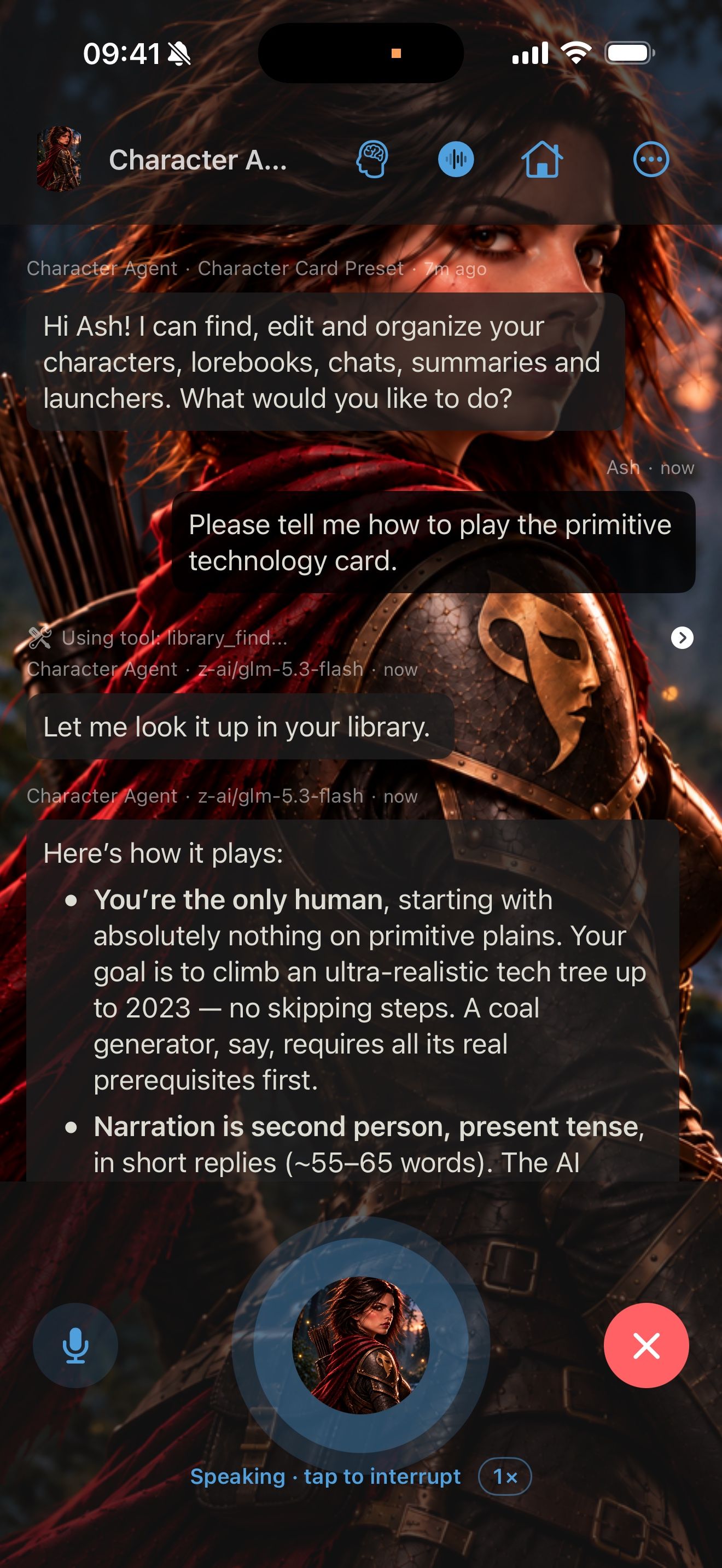
Its launcher is pinned on the home screen. Tap it and ask, for example:
- “Tag all my fantasy characters.”
- “Write a lorebook for Crimson Frost’s town, with the guild buyer and the tavern.”
- “Make a launcher for Crimson Frost that uses her lorebook.”
You can talk to it in voice chat, too. See Voice: hear them and talk back.
What needs your approval
Deletes, find-and-replace, and rewrites of a character’s text wait for you. The agent shows what it wants to change, and the change is made only when you tap Approve. Tap Reject to leave things as they are.
App Tools for any character
The agent works through App Tools, and any launcher can use them. Open a launcher and, under App Tools, switch on the parts of your library its model can find, read and change: Characters, Lorebooks, Chats, Summaries, Launchers and Personas. See Launchers.
Connect MCP tools
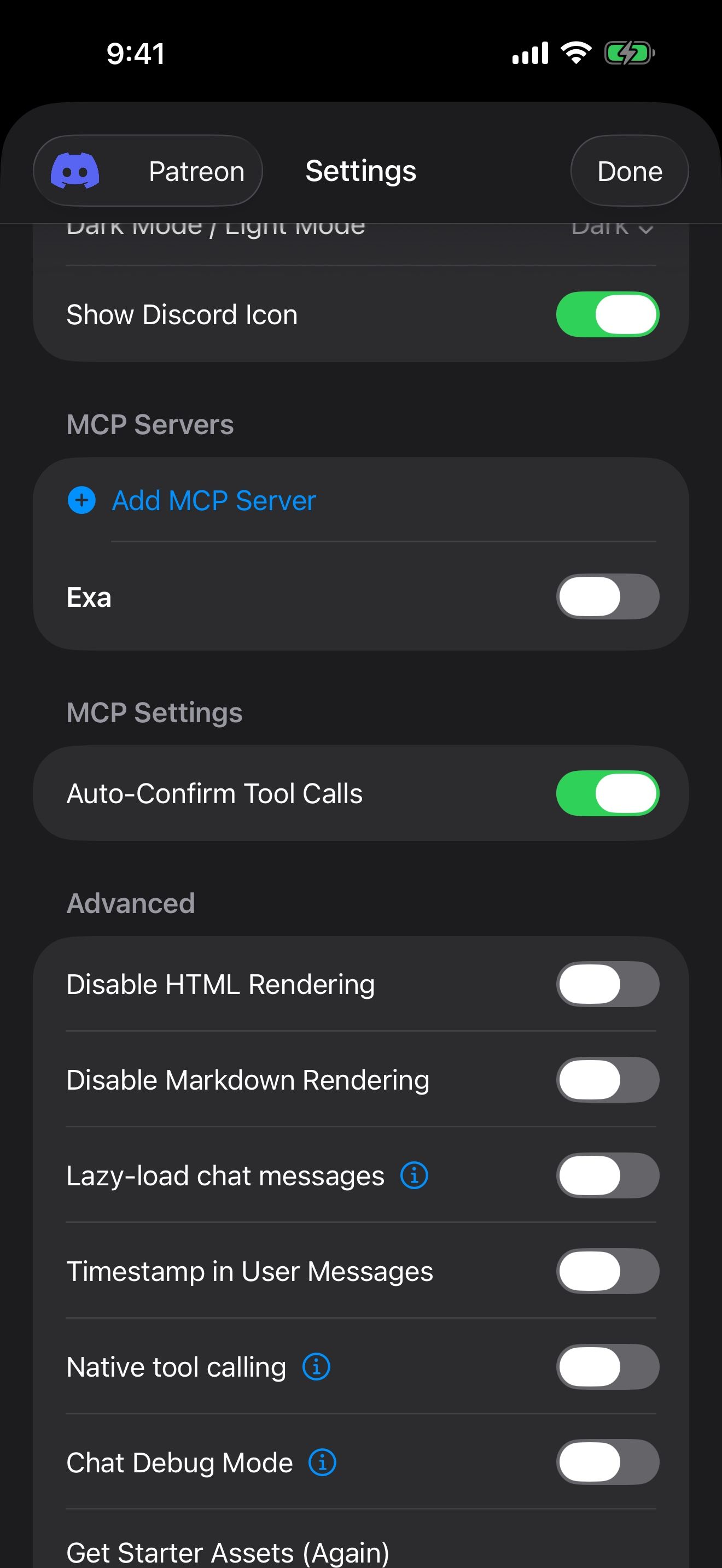
MCP servers give characters new tools. Exa web search is already added. It’s free, needs no key, and is off until you turn it on.
- In Settings, under MCP Servers, tap Add MCP Server.
- Enter a Name and the server’s Base URL.
- Under Authentication Method, choose None, API Key or OAuth 2.0. For OAuth, save the server, then tap Authenticate with OAuth.
- Under Transport Protocol, keep Streamable HTTP (2025-03-26) for modern servers, or pick Legacy HTTP/SSE (2024-11-05) for older ones.
- Save. The server’s tools are listed on the same screen.
Auto-Confirm Tool Calls, under MCP Settings, decides whether tool calls run on their own or wait for your OK.
Per launcher
Each launcher picks its own MCP servers, or turns on Use global MCP defaults. For example, turn on web search for an assistant character and leave it off for Crimson Frost.
To create characters and lorebooks with the agent, see Build a world by talking.
Keep going
Build a world by talking
Ask Character Agent to create characters, lorebooks and launchers for you, and approve every change.
Character Agent · Lorebooks · Launchers · MCP tools · Swipe, edit and branch
Meet Crimson Frost
Import our guide character, start a story with her, hear her replies read aloud, and give her a memory.
Card import · Character chat · Read aloud · Swipe, edit and branch · Memory