
Notifications, check-ins and privacy
Replies that finish in the background, characters who text first, phone context, Face ID, Siri and widgets.
Characters can finish replies after you leave the app, text you first, use information from your phone that you allow, and answer through Siri. Most of these settings are in Settings › Notifications & iPhone.
Replies in the background
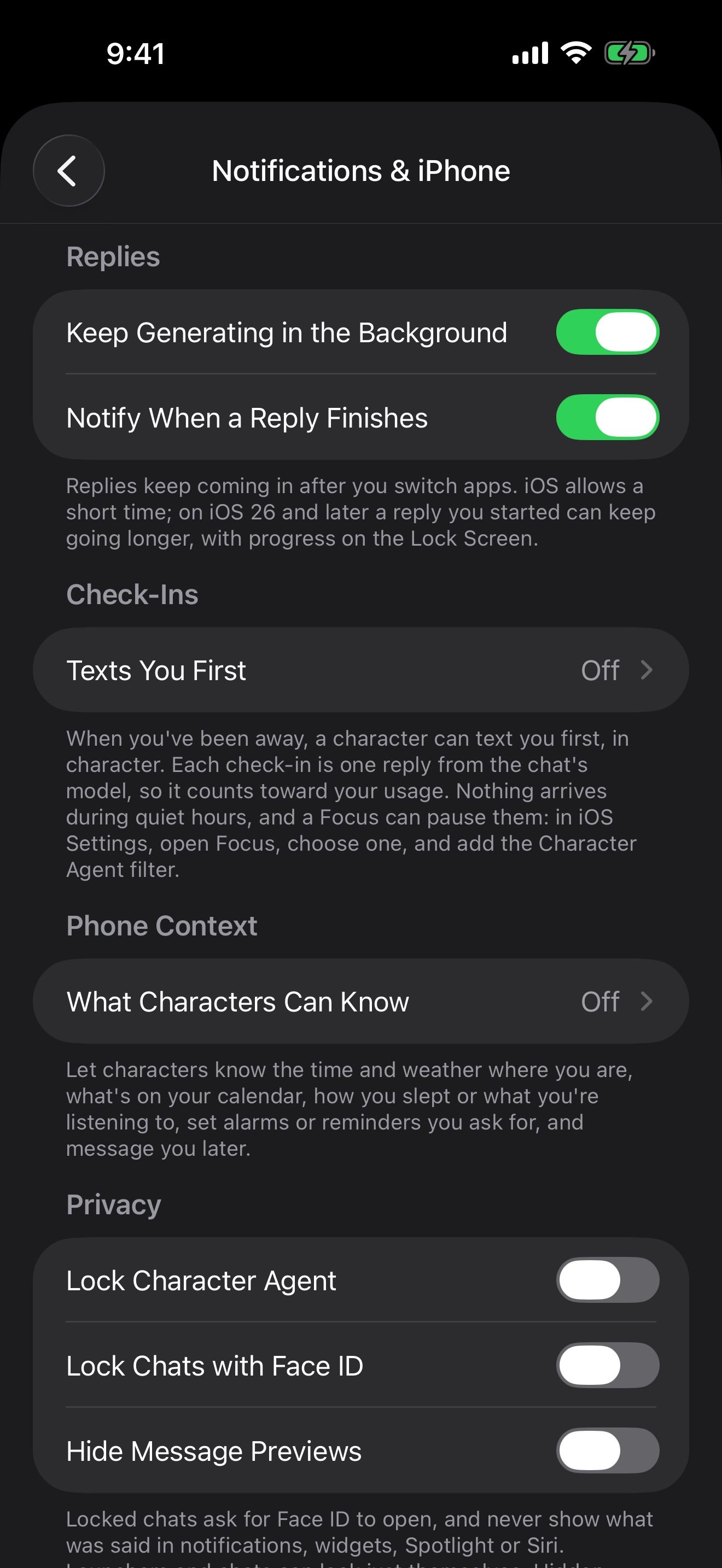
- Keep Generating in the Background lets a reply keep writing after you switch apps. On iOS 26 and later, a reply you started can keep going longer, with progress on the Lock Screen.
- Notify When a Reply Finishes sends a notification when the reply is done.
Characters who text first
When you’ve been away, a character can text you first, in character.
- Open Texts You First and choose Off, Sometimes (about once a day after you’ve been away) or Often (a few hours after you’ve been away).
- Set Quiet From and Quiet Until. Nothing arrives during quiet hours.
- To pause check-ins during a Focus, open Focus in the iOS Settings app, choose one, and add the Character Agent filter.
Launchers and each chat’s settings can set their own check-ins, so Crimson Frost can check in often while another character stays quiet.
What characters can know
Open What Characters Can Know and choose, one by one, what your phone may tell a character:
- Location & Weather: your city and the weather there, from Apple Weather.
- Calendar: your events, and adding new ones.
- Health & Activity: steps, sleep, workouts and activity.
- Now Playing: the song playing in Apple Music.
- Alarms & Reminders: alarms and reminders you ask for.
- Scheduled Messages: messages the character sends you later.
Each one can be Off, When Asked (the character looks it up when needed, if the chat’s model supports tools) or Every Message (a short line added to each message you send).
Upcoming Events
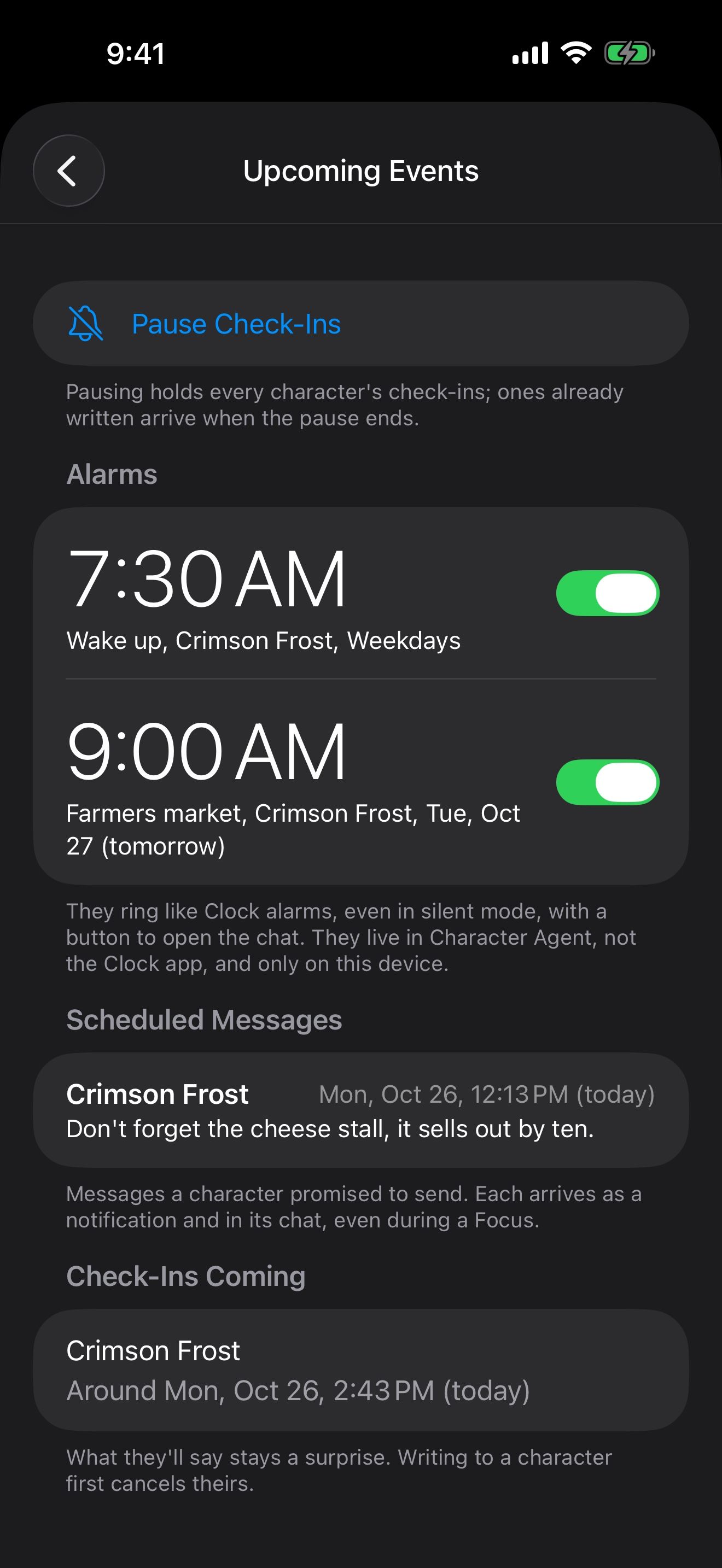
Settings › Upcoming Events lists everything your characters have set up: Alarms you asked for, Scheduled Messages a character promised to send, and Check-Ins Coming. Turn alarms on or off, remove items, or tap Pause Check-Ins to pause check-ins for every character. Alarms ring like Clock alarms on iOS 26.1 and later; before that, a character’s alarm arrives as a message at that time.
Lock the app or chats
Under Privacy:
- Lock Character Agent asks for Face ID to open the app: immediately, or after 1 minute, 15 minutes or 1 hour.
- Lock Chats with Face ID locks individual chats. A lock icon shows beside them in History.
- Hide Message Previews keeps chat text out of your notifications.
Siri, Shortcuts, widgets and Control Center
- Say “Message Crimson Frost in Character Agent” or “Have Crimson Frost continue the story in Character Agent”.
- Use characters and chats in Shortcuts automations.
- Add the Continue Chat, New Chat, Check-Ins, Continue Voice Chat and Voice Chat Control controls to Control Center or the Action button.
- Add the Chat, Recent Chats and Launchers widgets to your Home Screen. The Chat widget also fits on the Lock Screen.
Voice chat itself is covered in Give them a voice.
Keep going
Chat history
Find, rename, summarize, export and import chats.
Give them a voice, even yours
Talk hands-free with voices that run on your iPhone, and clone a voice for your character. All free.
Hands-free voice chat · On-device voices · On-device speech recognition · Voice cloning · Launchers · Siri, Shortcuts and widgets