
Find your way around
A quick tour of the home screen: launchers, Discover Characters, the create menu, History and Settings.
The home screen is where you start chats, find characters and open Settings. Here’s what’s on it.
Launchers
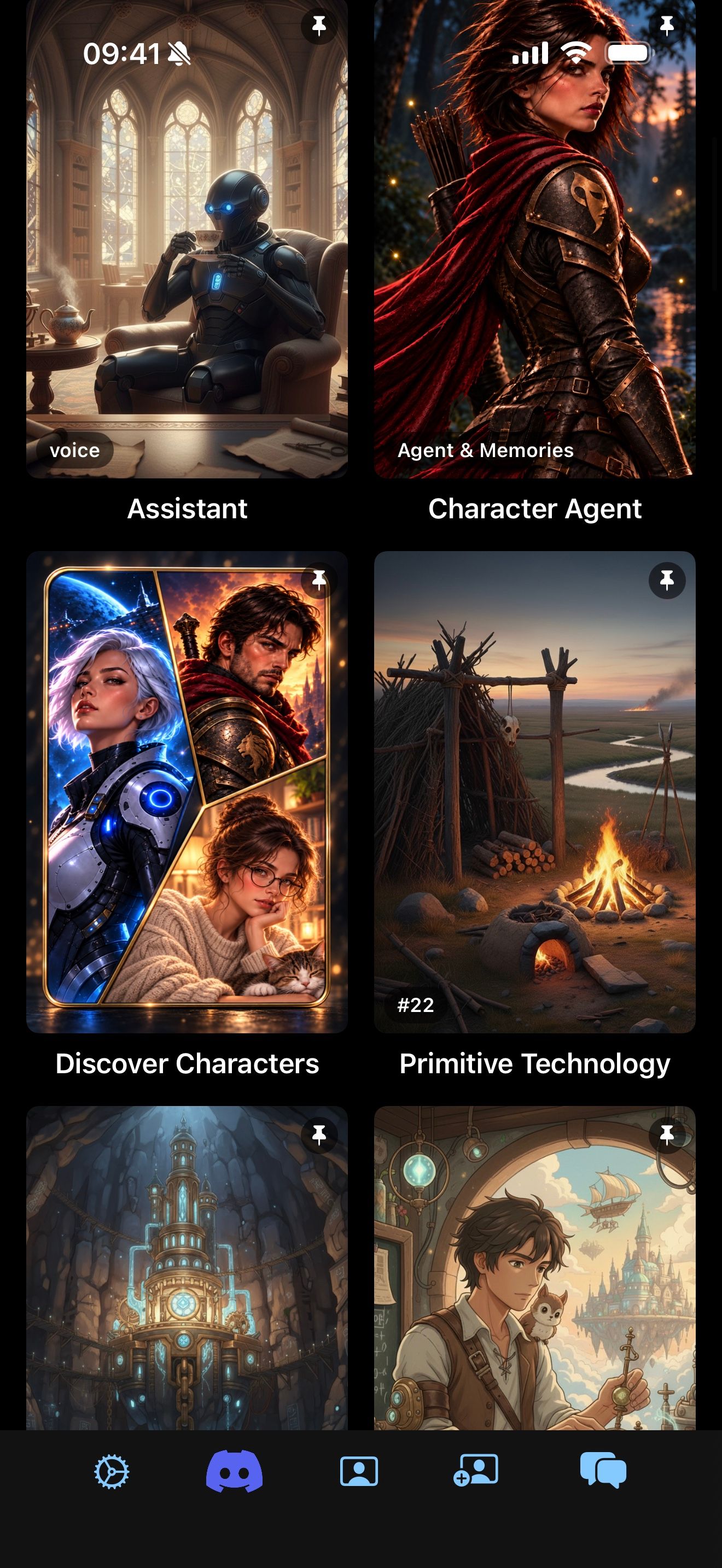
The home screen opens on your launchers. Each tile starts a chat with a character, set up the way you like: their greeting, who you play, their memories, voice and more. Tap a tile to start a fresh chat. Long-press it for Chat, Chat with Options, View Card, Pin, Edit Launcher and Duplicate Launcher.
Characters that don’t have a launcher yet show here too, so one tap still starts a chat. Launchers: saved ways to start a chat shows how to make your own.
Find new characters
The Discover Characters tile opens character card sites inside the app. On a character’s page, tap Import Character to add them to your library. Import character cards covers the other ways to import.
The bottom bar
- The gear opens Settings: voices, themes, models, memories and more.
- The center button switches between your Launchers and your Characters, the library of every character you own.
- The Manage Characters menu creates and imports: Create Launcher, Create Card, Import Card, Discover Cards and Import Chat.
- History lists your chats. Tap one to continue it.
Both lists have a search field, a tag filter and a sort menu.
Where to next
To start a story, see Meet Crimson Frost. To practice first, see Your first chat.
Keep going
Your first chat
Send a message, stop or skip ahead in a reply, and let the magic wand write your next line.
Meet Crimson Frost
Import our guide character, start a story with her, hear her replies read aloud, and give her a memory.
Card import · Character chat · Read aloud · Swipe, edit and branch · Memory