
You can set every color in a chat and the image behind it. Pick a built-in theme, design your own, or paste in one someone shared.
Pick a theme
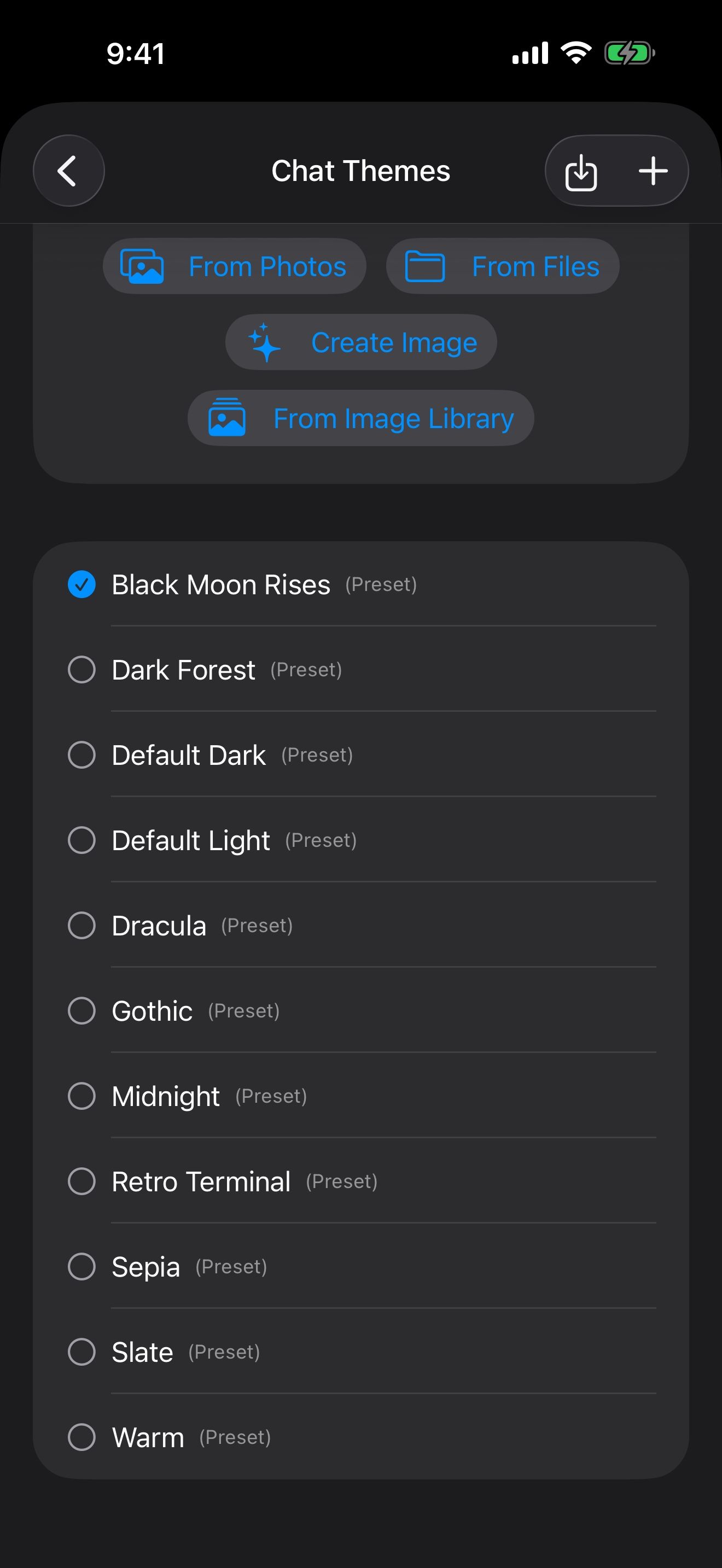
- Open Settings › Chat Themes.
- Tap a theme to preview and apply it. The app comes with eleven, from Default Light and Sepia to Gothic, Dracula and Dark Forest.
- Long-press a theme to Edit, Duplicate, Export or Delete it.
Launchers and single chats can each use their own theme, so different stories can look different. See Launchers.
Design your own
- In Chat Themes, tap Add New, or duplicate a theme you like.
- Set each color under Chat Area, Top Bar and Input Area: message bubbles and text, icons, backgrounds and more.
- Tap Save.
To use a theme someone shared, copy its text and tap Import from Paste. The custom theme reference lists every color in a theme file, with a ready-made Crimson Frost theme to try.
Backgrounds
Also in Chat Themes:
- Use character image as background puts each chat’s character portrait behind the messages.
- Choose a background image From Photos or From Files for chats without a character, and for launchers set to the global background. Adjust Alignment frames it; Remove clears it.
Chat appearance
Under Chat Appearance in Settings:
- Typewriter Speed sets how fast replies appear, or turns the effect off.
- Show Timestamps and Show Model Name add details under each message.
- Haptics turns vibration feedback on or off.
Light or dark
Under App Appearance, set Dark Mode / Light Mode to Light or Dark, or System to match your phone.
Keep going
Notifications, check-ins and privacy
Replies that finish in the background, characters who text first, phone context, Face ID, Siri and widgets.
The same face in every picture
Make pictures of your character that keep their look, and have pictures added to your chats automatically.
Reference pictures · Image creation · Image Library · Launchers · Themes