
Bring your characters home
Move your cards, lorebooks, presets and chats from other apps and card sites, then give them memory and a voice.
If your characters are on card sites or in another app, bring them over with their lorebooks, presets and chats. Then add a memory and a voice.
Browse the card sites
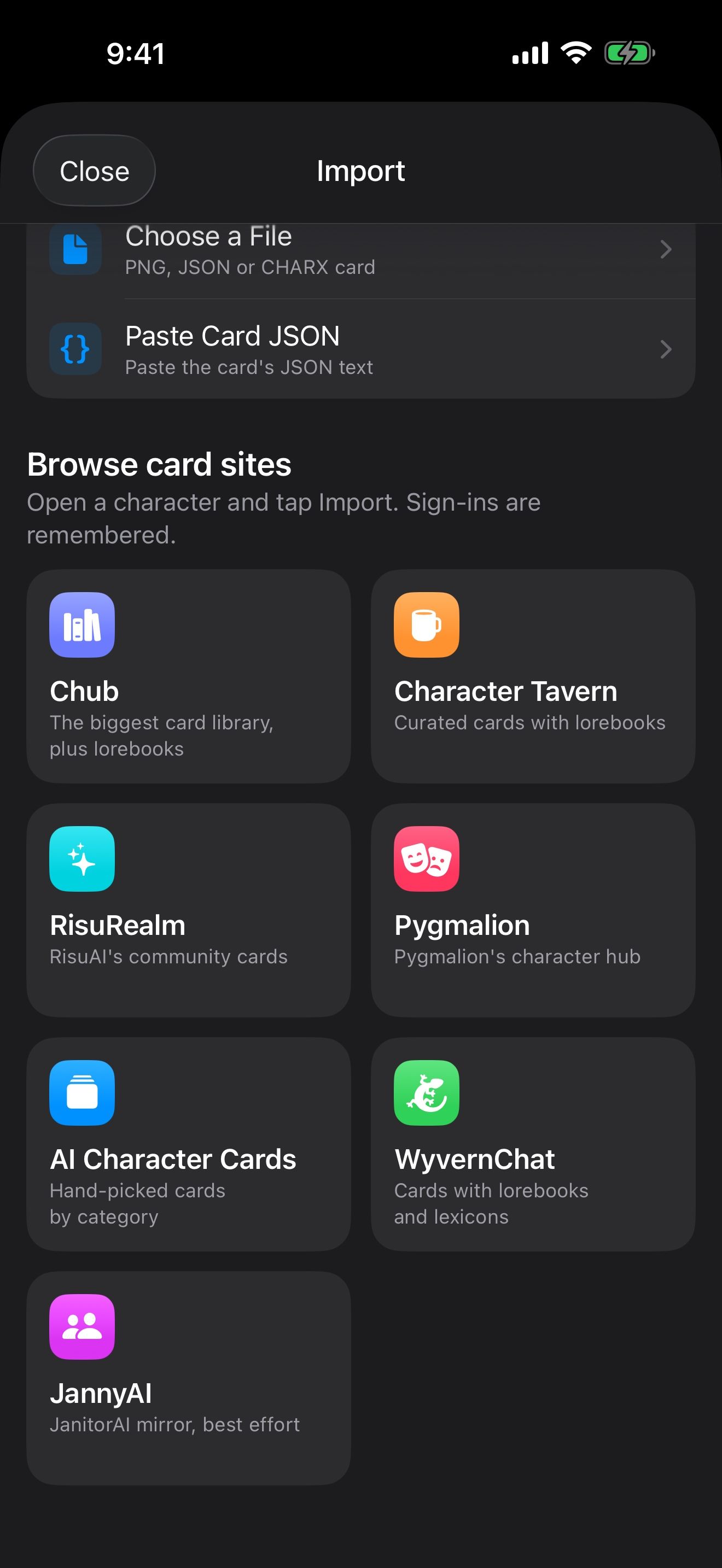
- Open the Manage Characters menu at the bottom of the home screen and tap Discover Cards.
- Pick a site: Chub, Character Tavern, RisuRealm, Pygmalion, AI Character Cards, WyvernChat or JannyAI.
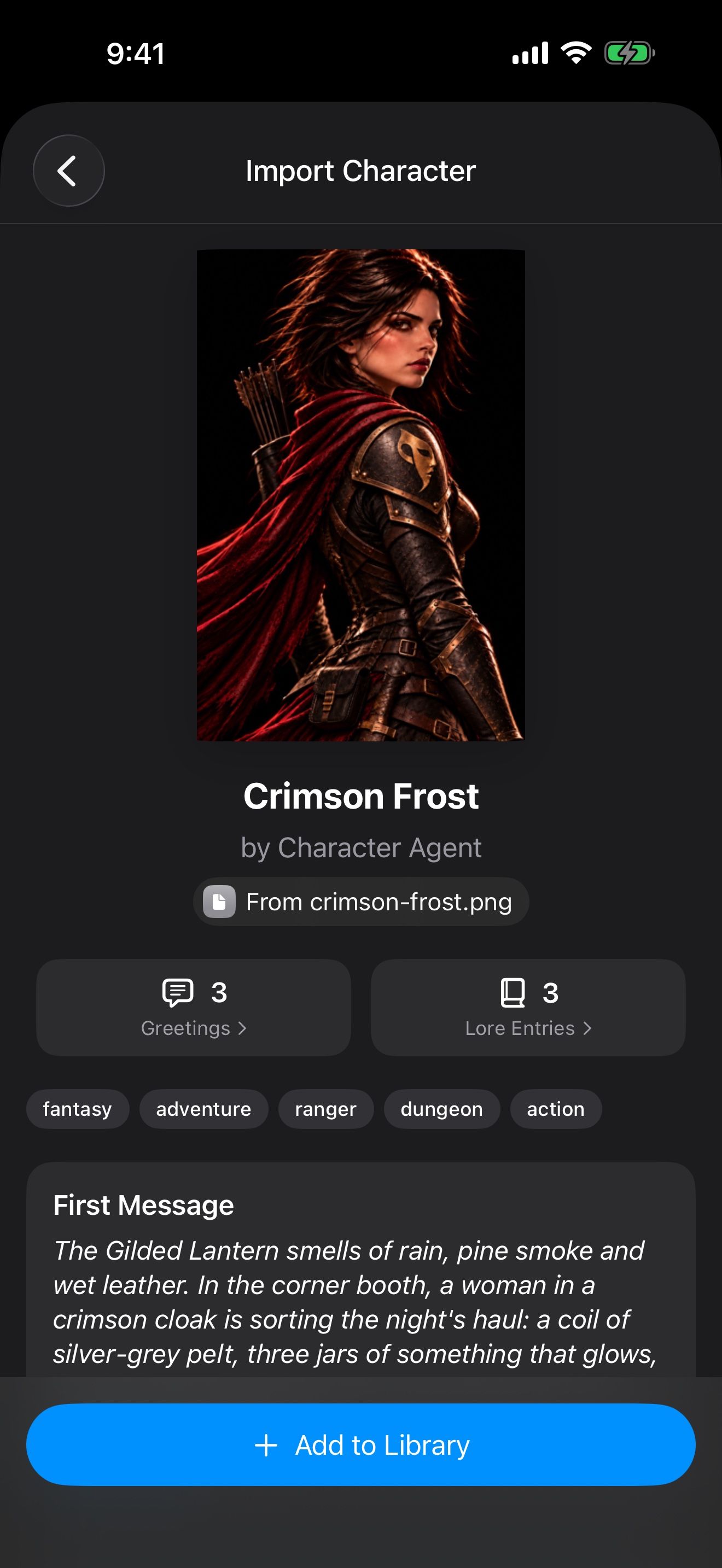
- Open a character’s page and tap Import Character at the bottom.
- The preview shows the greetings, description and lore. Tap Add to Library, then Start Chat if you want to chat now.
Sign-ins on card sites are remembered. To keep the sites one tap away, pin Discover Characters to the home screen.
From a link or a file
Open the Manage Characters menu and tap Import Card.
- Paste a link to a character or lorebook page from a supported site, including shared Perchance AI Character Chat links.
- Choose a File for a PNG, JSON or CHARX card (v1, v2 or v3).
- Paste Card JSON if you have the card as text.
In Safari, tap Share on a character page and choose Character Agent Share to send it to the app.
Bring the lorebooks
Lorebooks inside a card come with the card. For separate lorebooks, open Settings › Manage Lorebooks and tap Import File or Import from Paste. SillyTavern world info files work.
Bring your SillyTavern setup
- Open Settings › Prompt Presets and tap Import from File or Import from Clipboard. Use SillyTavern’s Chat Completions preset file.
- In Settings › Story Settings, set Preset to SillyTavern to use SillyTavern mode for new chats.
Each launcher can use its own genre or SillyTavern preset.
Bring your chats
Open the Manage Characters menu and tap Import Chat, then choose a chat file exported from another app.
Add memory, voice and pictures
- Memory: attach a memory, and a long chat you imported can Catch Up, learning from the earlier messages. See A character who remembers you.
- Voice: talk with them hands-free, with a voice that runs on your iPhone. See Give them a voice, even yours.
- Pictures: use their card picture as a reference, so pictures keep their look. See The same face in every picture.
Take them back out
- Long-press a character in your library and choose Export as PNG for a card file, or Export to Clipboard for its JSON.
- In History, long-press a chat and choose Export Chat.
- Open a lorebook and tap Export.
Every import option is in Import character cards.
Keep going
A character who remembers you
Give a character a memory that learns from your chats, check what it learns, and use it in new chats.
Memory · Launchers · Memory files · Chat history · Check-ins
Give them a voice, even yours
Talk hands-free with voices that run on your iPhone, and clone a voice for your character. All free.
Hands-free voice chat · On-device voices · On-device speech recognition · Voice cloning · Launchers · Siri, Shortcuts and widgets
Import character cards
Bring in character cards by link, file, paste, the Safari share sheet, or seven card sites inside the app.