
Create a character
Write a character from scratch: name, face, description, opening line, alternate greetings and tags.
If you can’t find the character you want, write one. The editor uses the standard character card fields, so other character apps can import what you make. Exporting is free.
Start a new card
Open the Manage Characters menu at the bottom of the home screen and tap Create Card.
Name and face
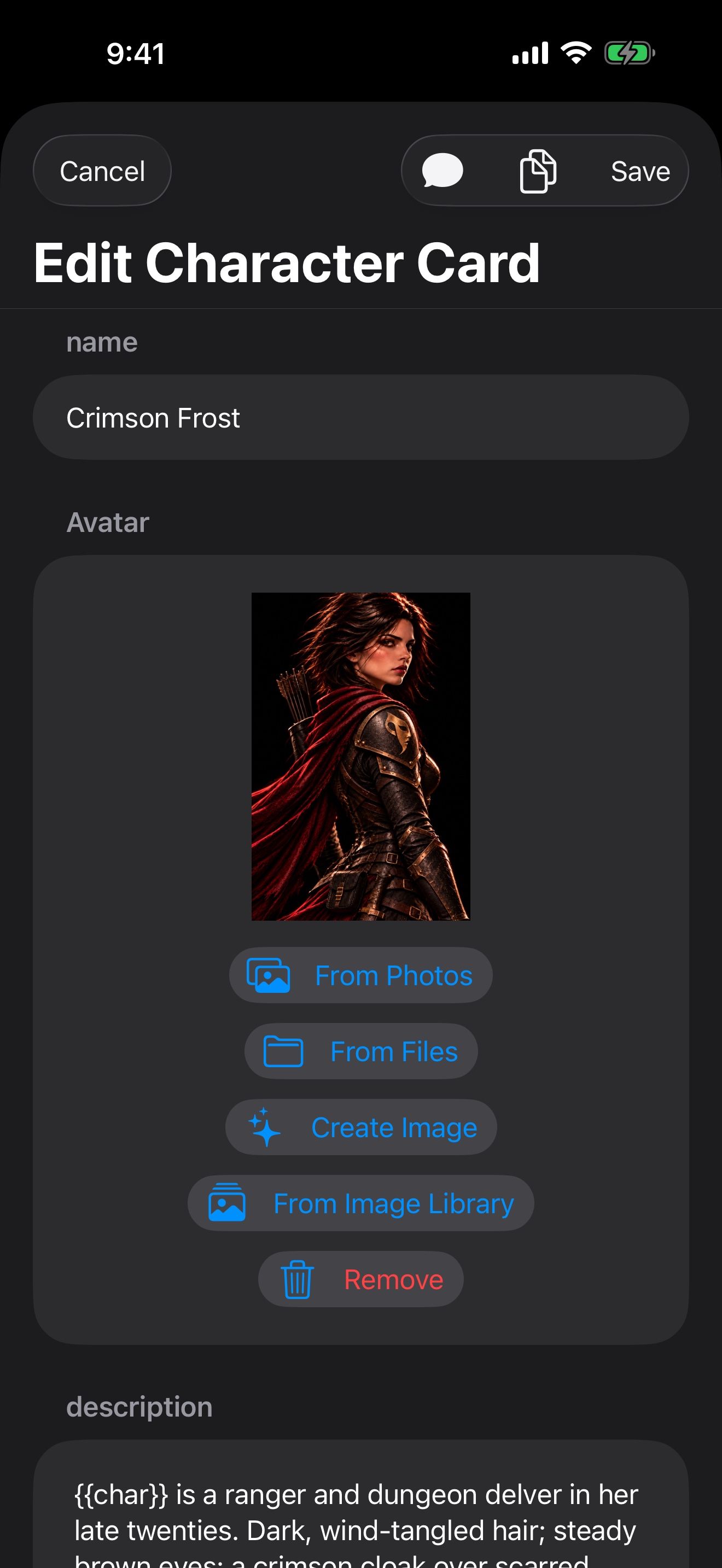
- Type their name under name. It’s the only required field.
- Under Avatar, pick a picture From Photos or From Files.
- With an image service set up, Create Image makes a portrait from a description, and From Image Library reuses one you’ve made. See The same face in every picture.
When you change a picture later, the old one is kept in your Image Library.
Who they are
- description is the most important field: looks, history, how they talk. Write it as if you were briefing an actor.
- personality and scenario add a short summary of their nature and the situation the story starts in.
- mes_example shows how they talk, with a sample exchange.
Crimson Frost’s card is a short example: three paragraphs of description, one line of personality, and one line of scenario.
The opening line
first_mes is the first thing they say, and it sets the scene. Under alternate_greetings, tap Add Alternate Greeting to add other openings. To start a chat with one of them, use Alternate Greeting in the character’s long-press menu, or Chat with Options.
Tags and favorites
Under tags, tap Add Tag for each one. Tags let you filter your library later. Turn on Favorite to heart the character; favorites aren’t saved into exported cards.
Advanced fields
The editor also has system_prompt, post_history_instructions, creator_notes, creator, character_version and character_book, the card’s own lorebook as JSON. Leave them empty if you don’t need them.
Save and chat
- Tap Save. Cancel discards the draft.
- Tap your new character in the library and choose Chat.
When you edit a saved character later, the editor also has Start Chat and Export, which copies the card’s JSON to the clipboard.
To save how chats with them start, with their memory, voice and theme, see Launchers: saved ways to start a chat.
Keep going
Launchers: saved ways to start a chat
Save how a chat starts: the character, greeting, persona, memories, lorebooks, model, voice, theme and images.
The same face in every picture
Make pictures of your character that keep their look, and have pictures added to your chats automatically.
Reference pictures · Image creation · Image Library · Launchers · Themes