
The same face in every picture
Make pictures of your character that keep their look, and have pictures added to your chats automatically.
This guide sets up pictures of Crimson Frost that keep her look from one picture to the next, then has the chat add pictures as you play.
Connect an image service
- Open Settings › Image Generation and tap Add Image Service.
- Pick a service. Pollinations is free to try without an account. The app’s list describes Google Gemini as the best at keeping a character’s look from their picture.
- Add your key if the service needs one.
Let her portrait keep her look
Her card’s picture is already her reference: Reference Image in Settings › Image Generation is set to Character by default, so her portrait is sent with each chat image. Services that accept a reference picture (OpenRouter, NanoGPT and Google Gemini) use it to keep her face, hair and red cloak the same from picture to picture.
Choose Persona to send your persona’s picture instead, or Custom to pick any picture from Photos, Files or the Image Library.
Make a picture in the chat
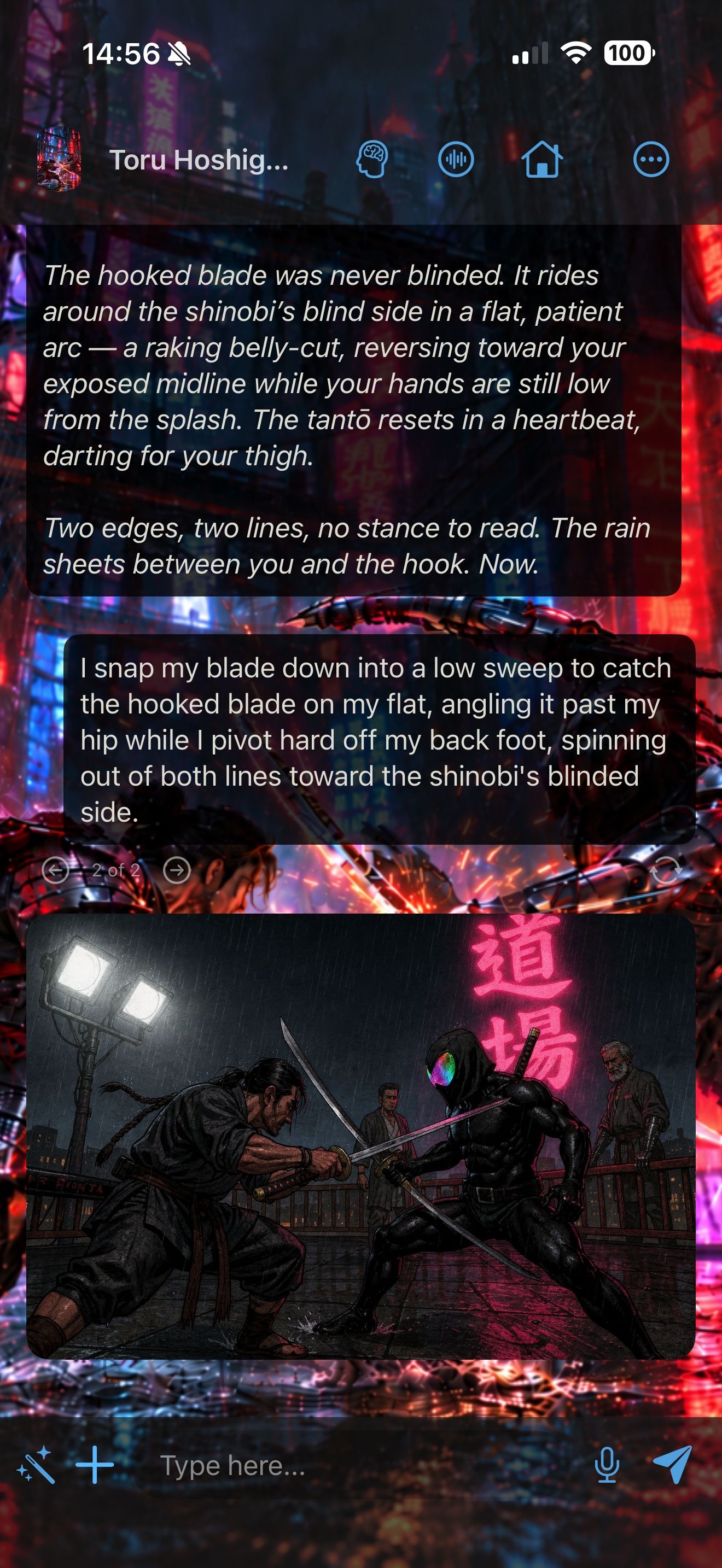
- Tap + beside the message box and choose Illustrate This Moment. The app writes the prompt from your chat.
- Or long-press any reply and choose Illustrate.
- To write the prompt yourself, choose Create Image….
The first time, the app tells you what is sent to the service. Tap Continue.
Add pictures automatically
In Settings › Image Generation, set Illustrate Chats to Every reply, or to every few replies, such as Every 3 replies.
Set one style
Under Style, describe the look once, like “painterly dark fantasy, candlelight”. It’s added to every image, so characters and scenes match. Under Avoid, list what to leave out, like “text, watermark”.
Her launcher can have its own image settings. Long-press it on the home screen, choose Edit Launcher, and set Image Service, Style, Avoid and Reference Image for her chats. Settings you don’t change there follow Settings › Image Generation.
Keep every picture

Every picture you make goes to Settings › Image Library. Open one to Share it, Save to Photos, Copy Prompt, or Set as Chat Background.
To make a picture for a character’s card, open the card editor and choose Create Image, or pick one From Image Library.
Use her portrait as the chat background
In her launcher, under Appearance, set Background to Character image to see her portrait behind the chat, or Custom image for a scene you made. Pair it with a dark theme, like the Crimson Frost theme.
All image settings are covered in Images: pictures for your stories. To give her a voice next, see Give them a voice.
Keep going
Give them a voice, even yours
Talk hands-free with voices that run on your iPhone, and clone a voice for your character. All free.
Hands-free voice chat · On-device voices · On-device speech recognition · Voice cloning · Launchers · Siri, Shortcuts and widgets
Build a world by talking
Ask Character Agent to create characters, lorebooks and launchers for you, and approve every change.
Character Agent · Lorebooks · Launchers · MCP tools · Swipe, edit and branch
Images: pictures for your stories
Connect an image service, set your style, keep a character's look, and add pictures to chats.