
Launchers: saved ways to start a chat
Save how a chat starts: the character, greeting, persona, memories, lorebooks, model, voice, theme and images.
A launcher is a saved way to start a chat: the character, their greeting, the persona you play, their memory, voice, theme and images. Tap it to start a new chat with those settings.
Use a launcher
- Tap a launcher tile on the home screen to start a new chat with its settings.
- Long-press it for Chat, Chat with Options, View Card, Pin, Edit Launcher, Duplicate Launcher and Delete Launcher.
The sort menu orders launchers by character or launcher name (A–Z or Z–A), or by Recently Modified or Recently Created. Use Search launchers and the tag filter to find one.
Make one
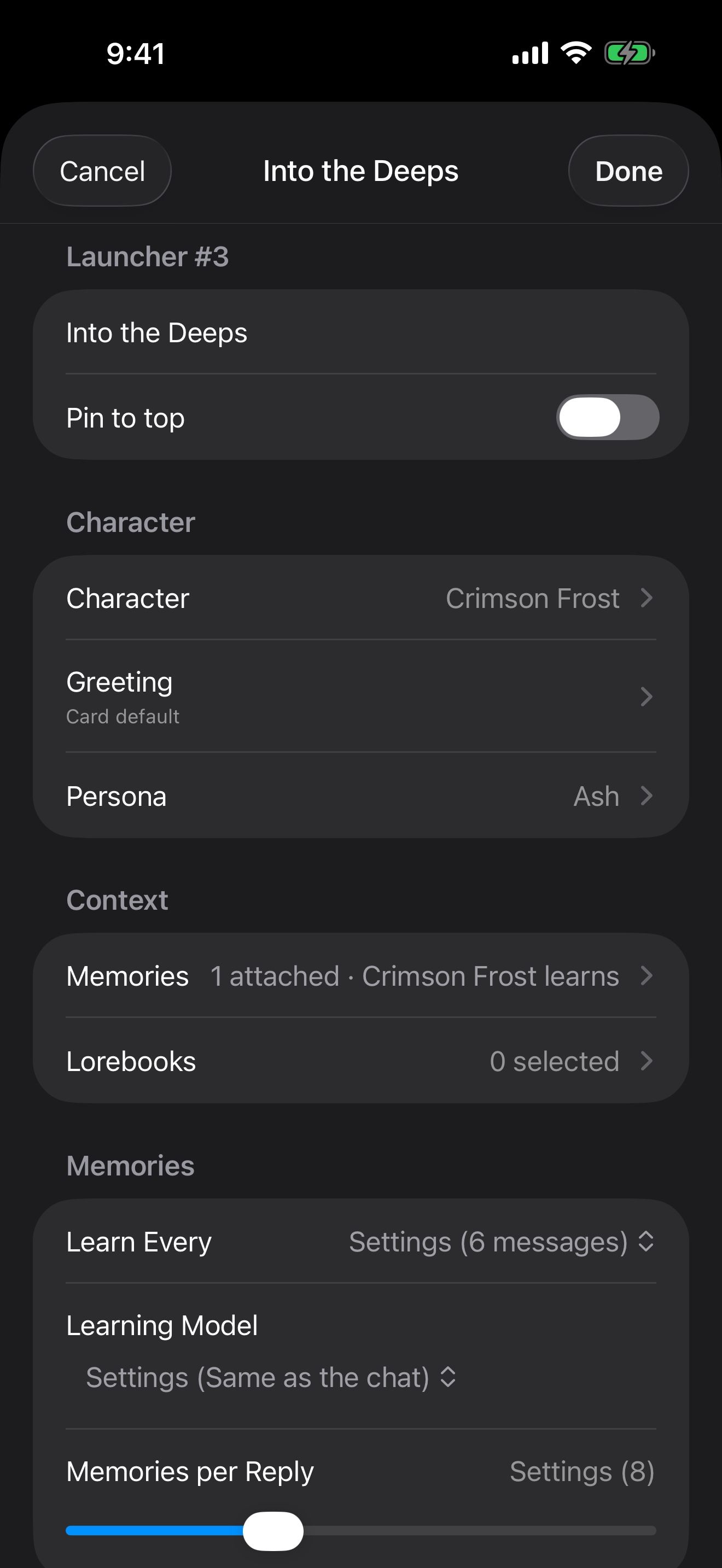
- Open the Manage Characters menu at the bottom of the home screen and tap Create Launcher. You can also tap Create Launcher on a character’s card.
- Name it, and turn on Pin to top to keep it first. Without a name, it shows as a number, like “Launcher #3”.
- Under Character, pick the character, the Greeting they open with, and the Persona you play.
- Under Context, attach Memories and Lorebooks.
- Tap Done.
Everything else, per launcher
Anything left on Settings uses your app-wide settings. A change here applies only to chats from this launcher:
- Memories: how often they learn and which model does the learning.
- Model: the provider and model that write replies, so one character can use a different AI.
- Appearance: the Theme and the Background: your global one, the character’s image, or a custom image.
- Images: image service, Style, Avoid and Reference Image.
- Voice & Speech: the character’s own voice, reading, and how voice chat behaves.
- iPhone: check-ins, reply notifications, hidden previews and Face ID lock.
- Prompt: the prompt engine, genre preset and prompt preset.
- App Tools and MCP Servers: which tools the model can use.
Already chatting?
In a chat, open the ⋯ menu and choose Chat Settings to change that chat’s settings. Changes apply to this chat only and take effect from the next message. You can also apply another launcher’s settings there.
Examples
One launcher can start a chat with Crimson Frost’s memory, her own voice, and a reference picture that keeps her look the same. These guides set up each part: A character who remembers you, Give them a voice, even yours and The same face in every picture.