
Images: pictures for your stories
Connect an image service, set your style, keep a character's look, and add pictures to chats.
Make pictures of characters and scenes, use them as avatars and chat backgrounds, and add pictures to your chats.
Connect an image service
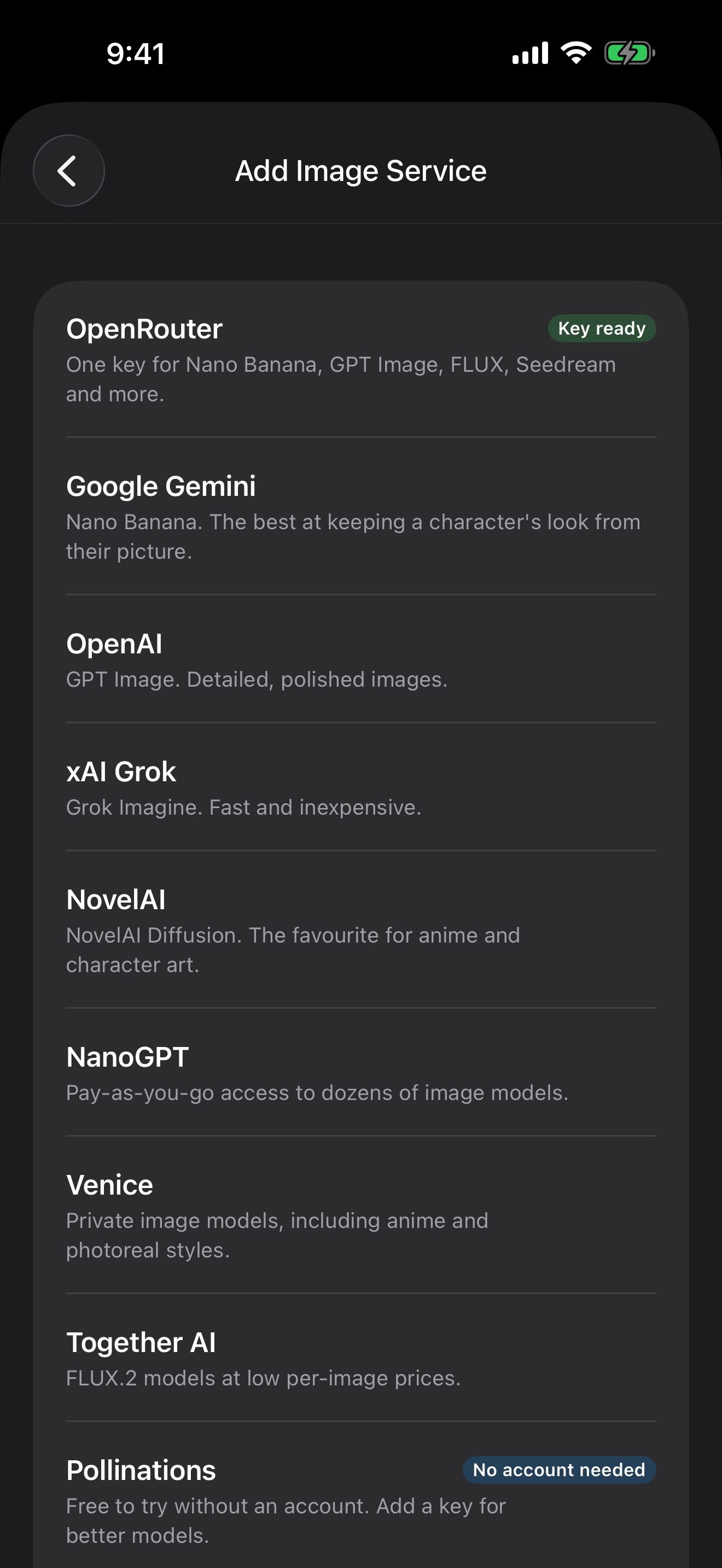
- Open Settings › Image Generation and tap Add Image Service.
- Pick a service: OpenRouter, Google Gemini, OpenAI, xAI, NovelAI, NanoGPT, Venice, Together AI, Pollinations, a Stable Diffusion server on your own network such as Draw Things, or a custom service.
- Enter your key, if the service needs one.
Images are requested from your iPhone straight to the service. Long-press a service to Edit, Duplicate or Delete it.
Set your style
Still in Settings › Image Generation:
- Style is added to every image, so characters and scenes share one look. For example: “painterly anime illustration, soft rim light”.
- Avoid lists what to leave out, like “text, watermark, extra fingers”, on services that support it.
Keep a character’s look
Reference Image chooses whose picture is sent with chat images, so people keep their look: the Character, your Persona, a Custom picture, or None. It works on the services that accept a reference picture: OpenRouter, NanoGPT and Google Gemini. Launchers and chats can pick another.
Custom takes any picture, from Photos, Files, Create Image or the Image Library. Make it a composite to keep several things consistent at once: put two characters side by side, or a character in front of the place the story happens, and chat images use all of them.
Illustrate chats
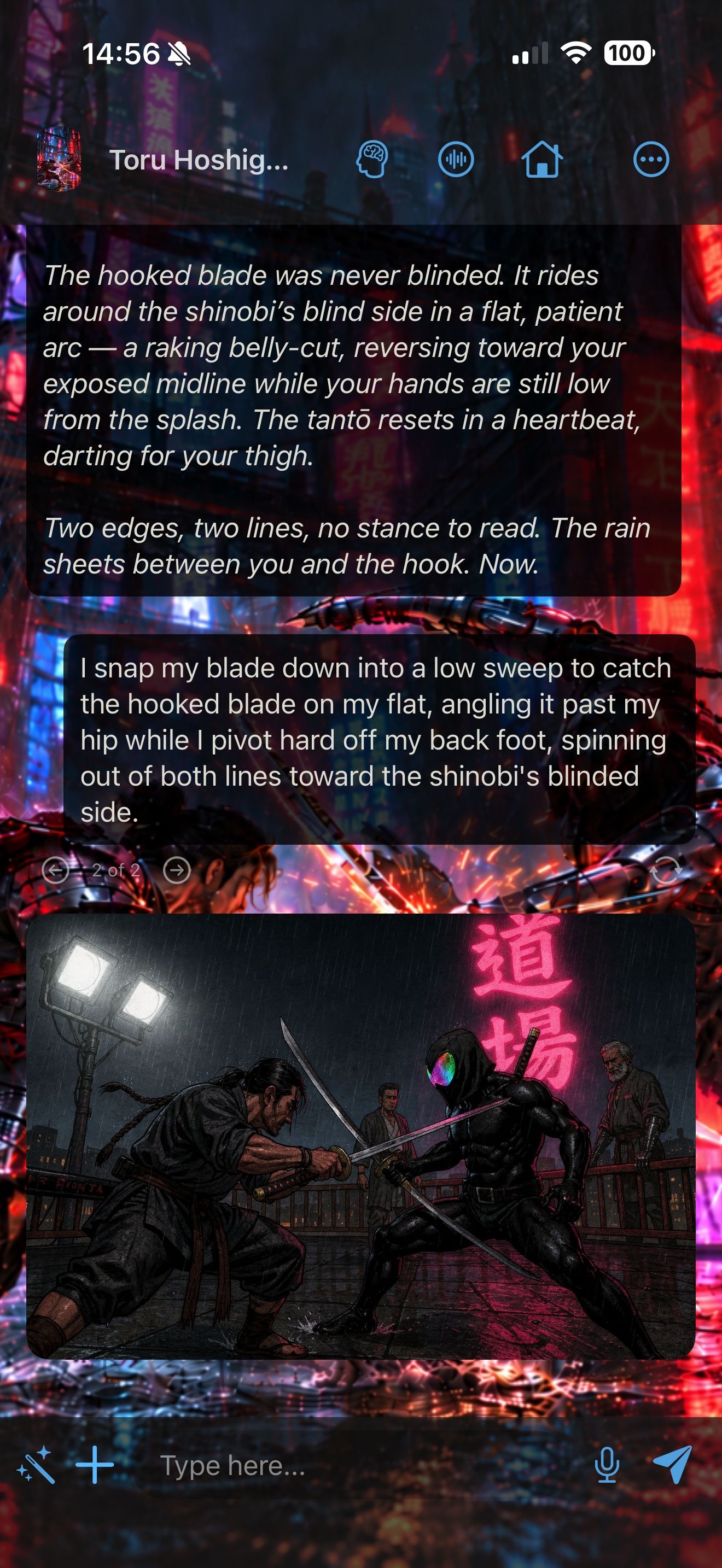
- Illustrate Chats adds pictures automatically: Every reply, every few replies, or Off.
- In a chat, tap + beside the message box and choose Illustrate This Moment, or Create Image… to describe a picture yourself.
- Long-press a reply and choose Illustrate to make a picture of that moment.
Launchers and chats can each have their own image settings.
Pictures for characters and personas
Wherever there’s a picture to choose, such as a character’s avatar in the editor, tap Create Image to make one, or pick one From Image Library.
The Image Library
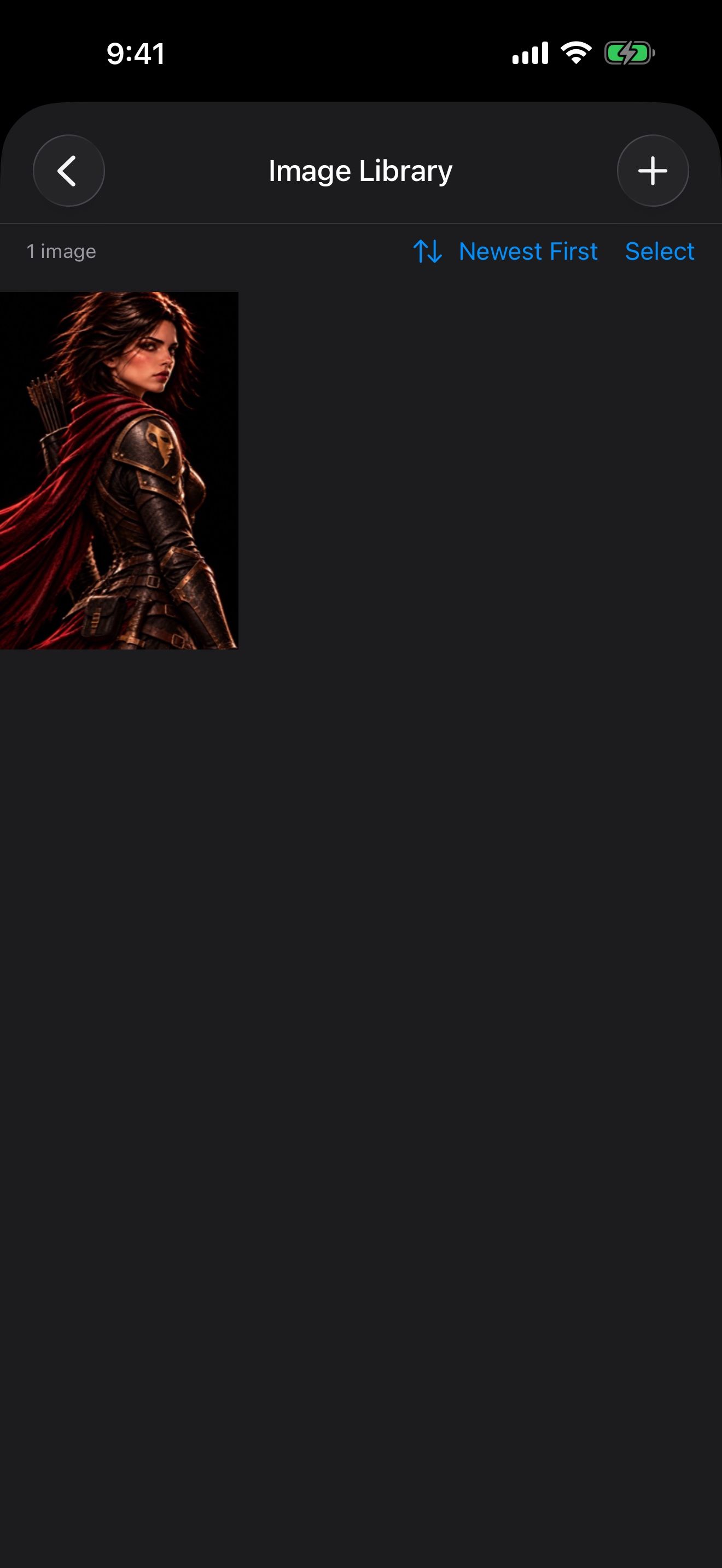
Open Settings › Image Library to see every image you’ve made.
- Sort by date or by character.
- Tap Select to Share, Save to Photos or Delete several at once.
- Import from Photos brings in pictures you already have.
Pictures you replace, like an old avatar or background, stay in the library. To use one as a chat background, see Themes and appearance.