
Give them a voice, even yours
Talk hands-free with voices that run on your iPhone, and clone a voice for your character. All free.
This guide sets up hands-free voice chat with Crimson Frost: no typing and no need to look at the screen. Start a voice chat, pick her voice, and use it with headphones, on the Lock Screen and with Siri.
Talk to her now
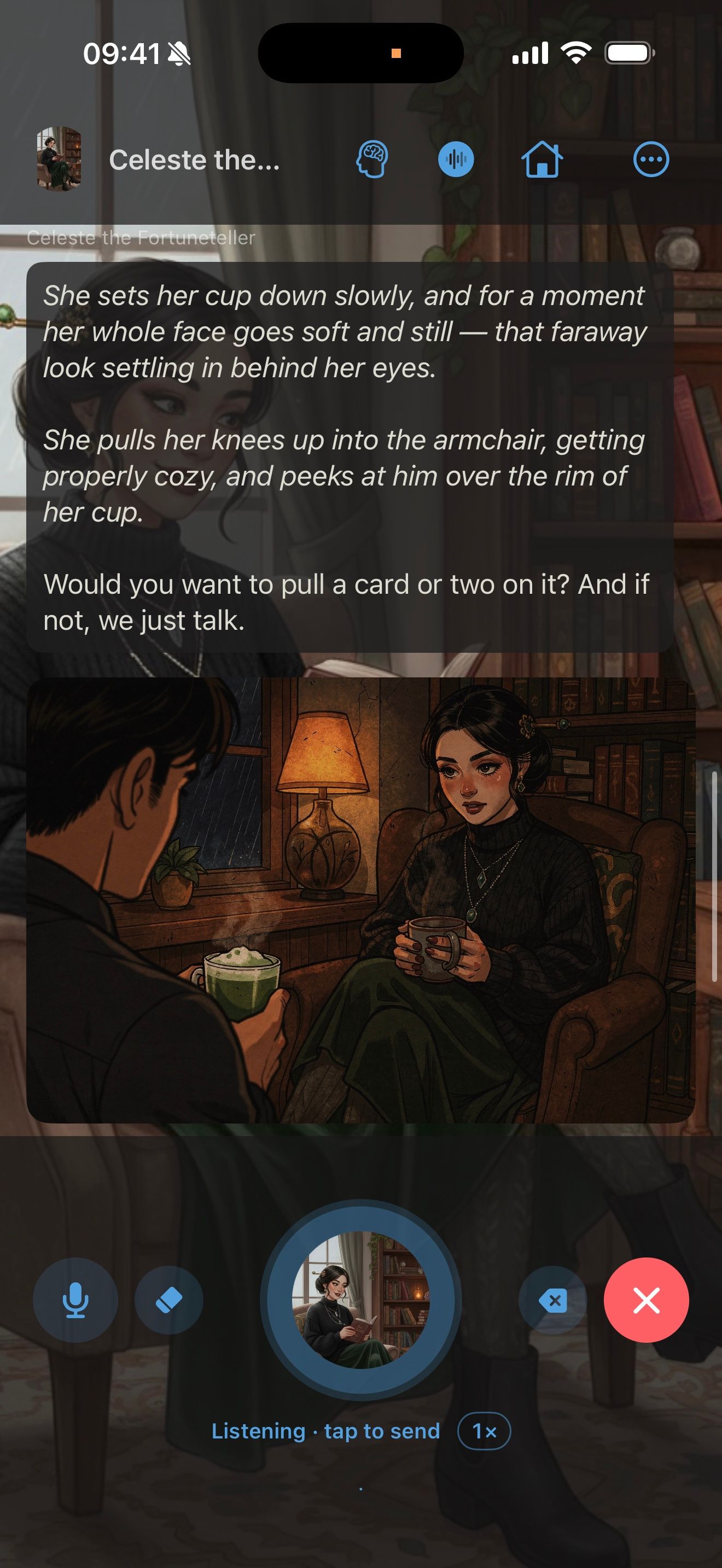
- Open a chat with her.
- Tap the waveform at the top of the chat. Voice chat starts.
- Talk. When you’re done, tap her picture to send what you said.
She answers out loud. Heart, a natural English voice, is built in, and Whisper turns your speech into text on your iPhone.
Pick a voice
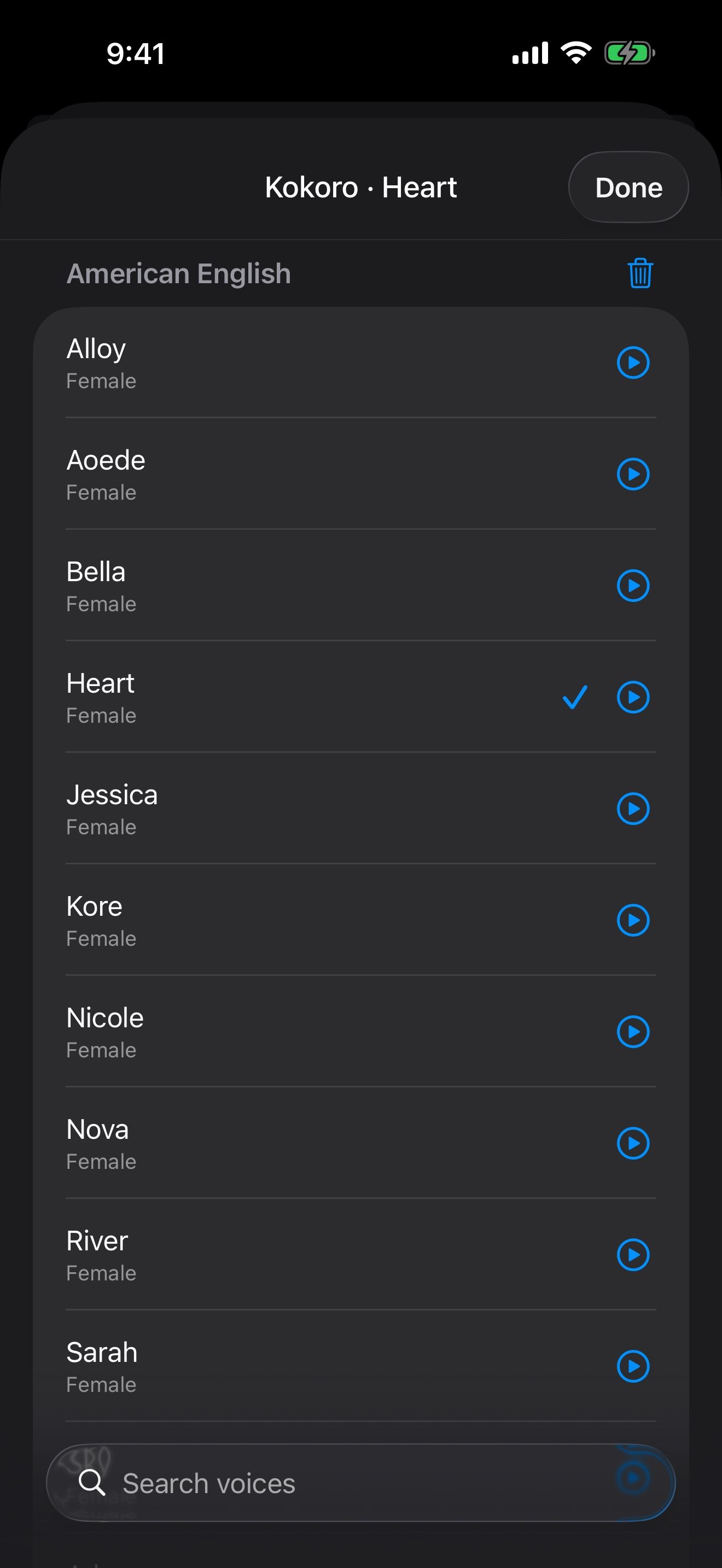
- Open Settings › Voice & Speech and tap Character Voice.
- Under On-Device, try the built-in voices: Heart (listed as Paradee), Apple’s voices, or your own Personal Voice.
- For more voices, tap + and add Kokoro (English, Japanese, Mandarin, Spanish and French) or Ming (English and Chinese, with over 100 Chinese voices). Each is a free, one-time download, and works offline after that.
A voice for one character
The voice in Settings applies to every character. Her launcher can give her a different voice.
- Long-press her launcher on the home screen and choose Edit Launcher.
- Under Voice & Speech, pick her Character Voice.
- Set Read to Dialogue + narrator, and pick a Narrator Voice. Her voice reads her dialogue, and the narrator voice reads the rest.
- Tap Done.
Clone a voice
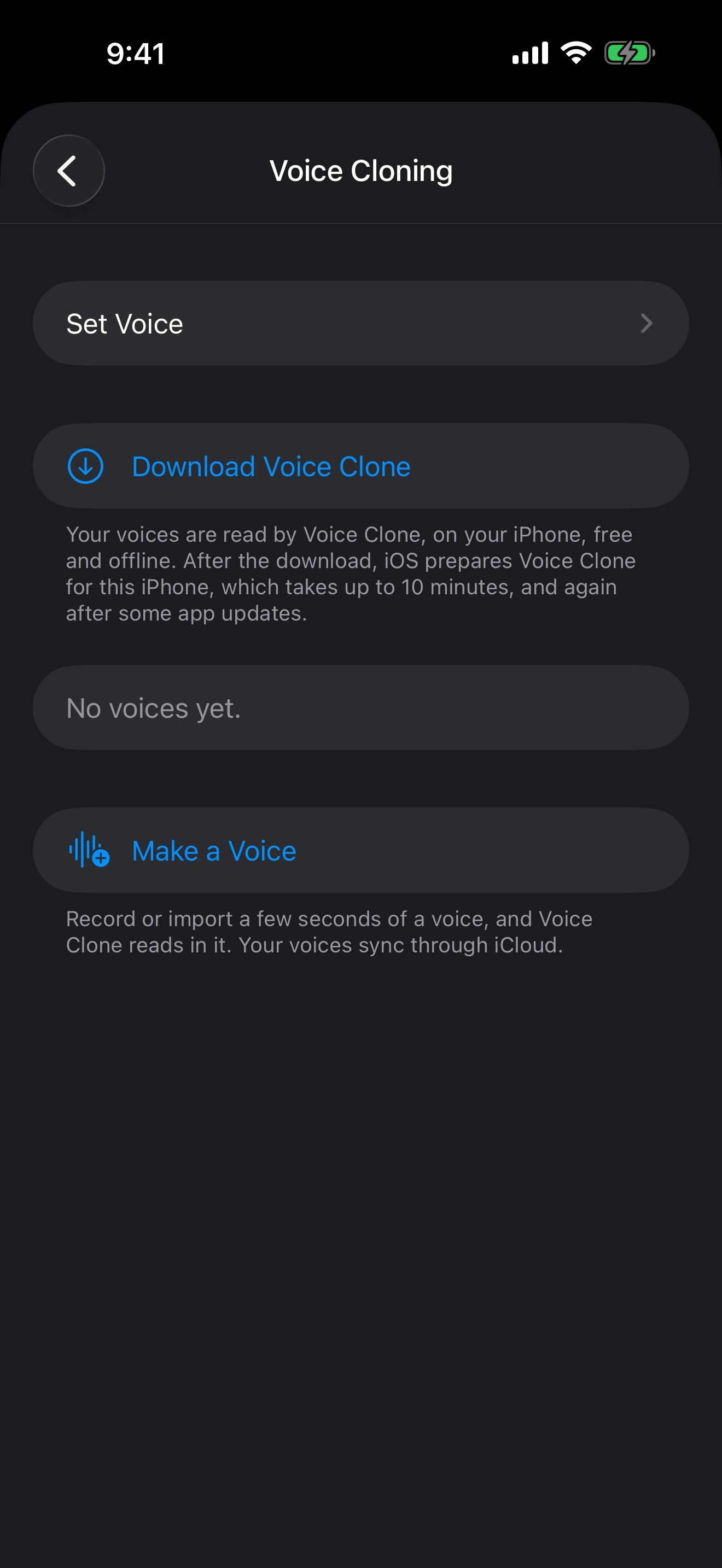
Make a voice from a few seconds of audio: your own, or one you have permission to use.
- Open Settings › Voice Cloning and tap Make a Voice.
- Record yourself reading the lines under Read This Aloud, for 3 to 10 seconds in a quiet room. Or tap Import a Recording of one voice speaking.
- Check Words in the Recording. They must match the recording exactly.
- Name the voice, turn on This is my voice, or I have permission to use it, and tap Save.
Voice Clone, the on-device model that makes and reads your voices, is a free download on the same screen. If you save first, your voice is made as soon as the download finishes. Then tap Set Voice and pick your new voice as her Character Voice. Your voices sync to your other devices through iCloud.
Talk in your language
Whisper understands 90+ languages. In Settings › Voice & Speech, tap Transcription to download a larger Whisper model, and Language to choose yours. Kokoro speaks English, Japanese, Mandarin, Spanish and French, and Ming speaks English and Chinese.
Headphones, Lock Screen and Siri
- Headphones: turn on Listen for Interruptions to cut in while she’s talking. Headphone Controls sets what AirPods presses do.
- Lock Screen: voice chat keeps going with your phone locked, with controls on the Lock Screen and in the Dynamic Island.
- Siri: say “Talk with Crimson Frost in Character Agent” to start a voice chat, or “Keep talking with Crimson Frost in Character Agent” to pick it back up.
- Control Center: add the voice chat controls to start voice chat with one tap.
Every voice setting is in Voice: hear them and talk back. To have her remember what you talked about, see A character who remembers you.
Keep going
A character who remembers you
Give a character a memory that learns from your chats, check what it learns, and use it in new chats.
Memory · Launchers · Memory files · Chat history · Check-ins
The same face in every picture
Make pictures of your character that keep their look, and have pictures added to your chats automatically.
Reference pictures · Image creation · Image Library · Launchers · Themes
Voice: hear them and talk back
Read aloud, on-device voices, speech recognition, hands-free voice chat and voice cloning.