
Rewrite the story
Swipe for another version of a reply, edit any message, and branch a new chat from any message.
You can change any reply: swipe for a different version, edit the text, or branch a new chat from that point and keep both.
Swipe for another version
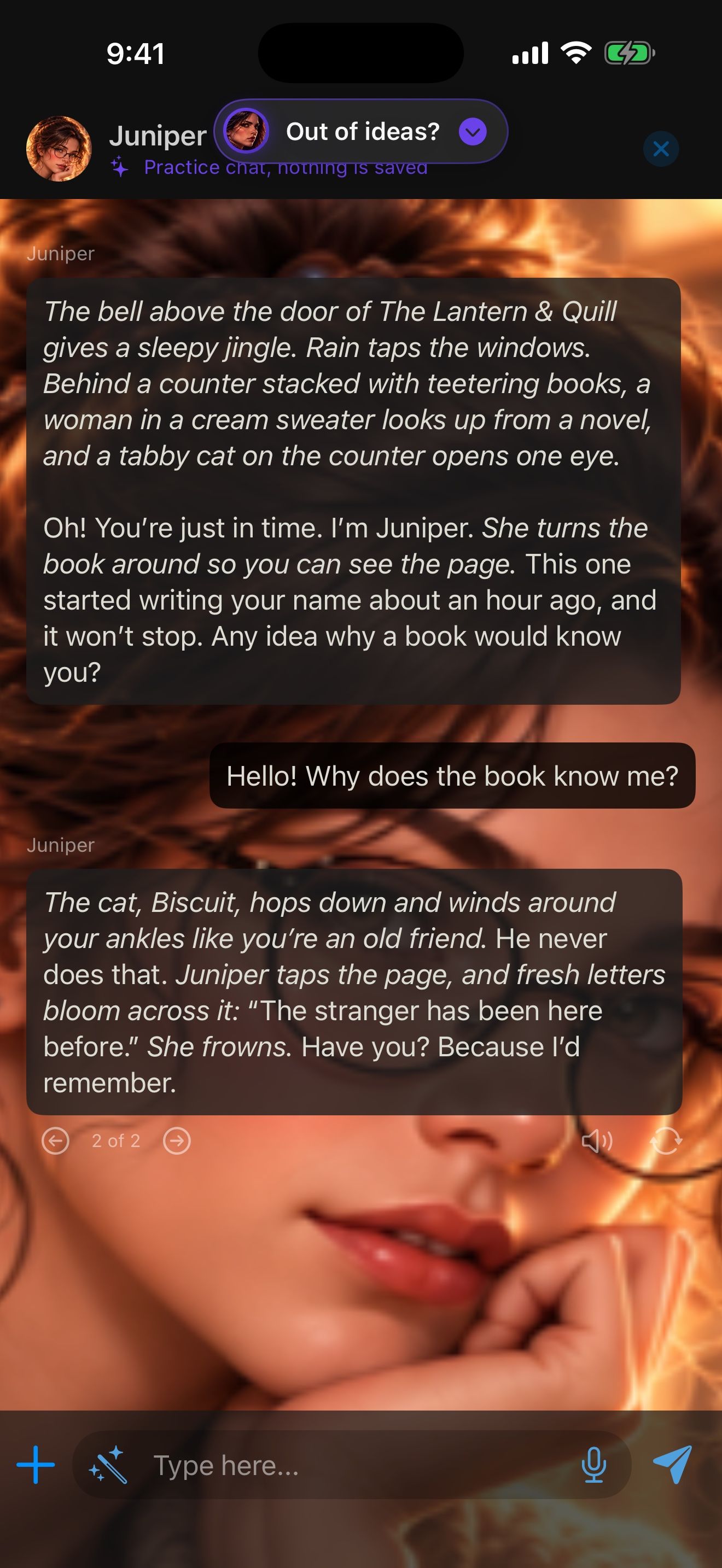
- Swipe a reply to the left to get a different version.
- The arrows and the counter, like 2 of 3, show which version you’re reading. Swipe or tap the arrows to move between them. Every version is kept.
- Later replies build on the version on screen. Swiping past the last version writes a new one.
Regenerate, in a message’s long-press menu, also writes a new version.
Edit any message
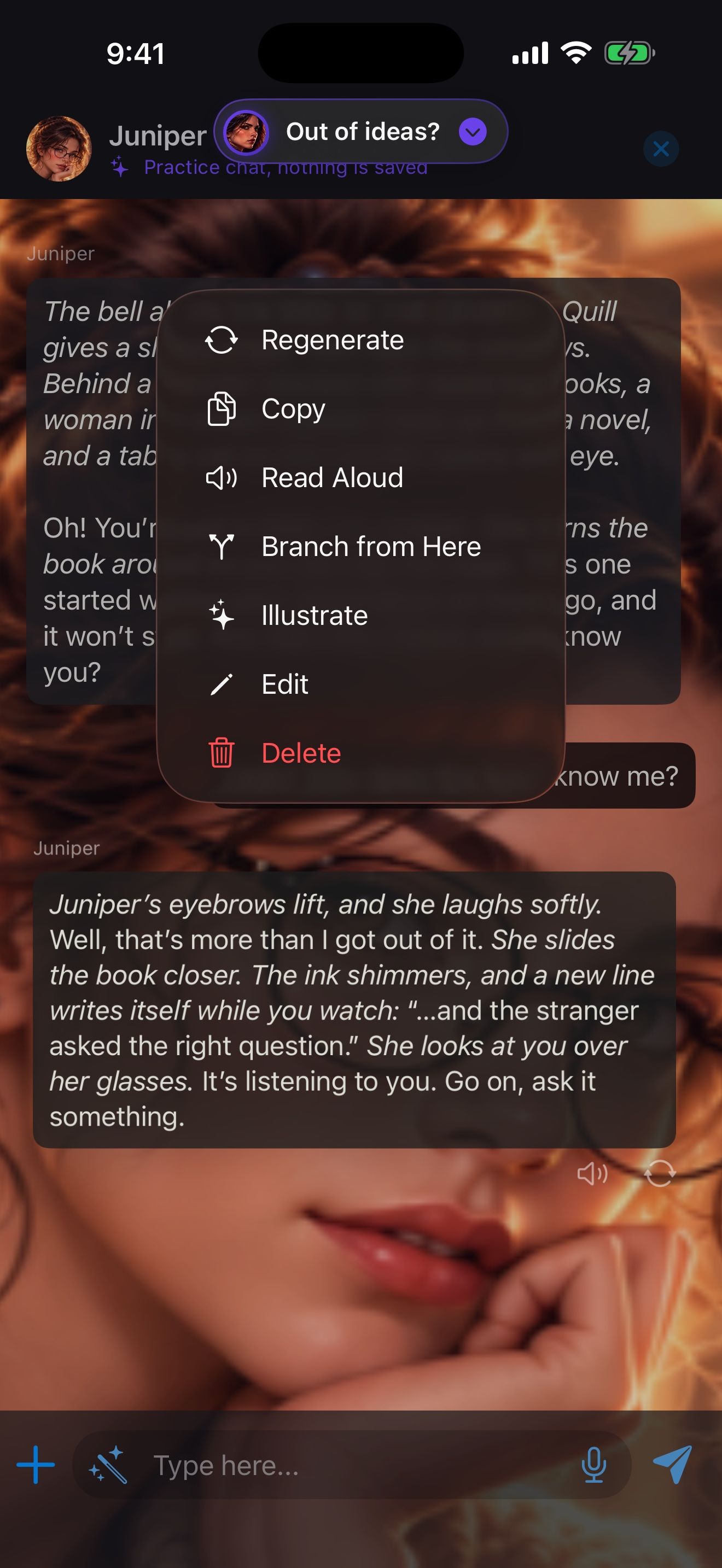
- Long-press a message and choose Edit.
- Change the text, including in the character’s replies, and tap Save. Later replies build on your edited text.
The same menu has Copy, Read Aloud, Illustrate and Delete. Illustrate makes a picture of the scene in that reply; see Images: pictures for your stories.
Branch a new story
Branch from Here, in the long-press menu, starts a new chat with the messages up to that one. The original chat doesn’t change, so you can try a different direction and keep both.
Go further
A branch is a new chat. Attach the same memory to it, and the character can recall what it learned in the original chat. See A character who remembers you. You can also ask Character Agent to change a chat for you: see Build a world by talking.
Keep going
Your character library
Search, favorite, filter and sort your characters, and use the long-press menu.
Build a world by talking
Ask Character Agent to create characters, lorebooks and launchers for you, and approve every change.
Character Agent · Lorebooks · Launchers · MCP tools · Swipe, edit and branch